Google+ open-source construction: shortcuts Google+
Showing posts with label shortcuts. Show all posts

Thursday, April 5, 2012

my Jan. 1st OSc show...


Introduction segment:

Welcome to open-source construction...

We are here today to talk about building computer skills with open-source software.

I want to first welcome all of my guests today, who are privileged to catch our very first episode.
I am broadcasting today from Cambridge, MA near Boston on the first Sunday of the year 2012. I thought this day would be a very symbolic launch date for our new channel.

I chose the name OSC_T.V. for my channel after my Blog(open-source--construction.blogspot.com) open-source construction. open-source construction is also the name of this community as a whole.
I chose the name open-source construction to represent my community, because I want to help people to build computer skills, with open-source software tools. The best part is that if you are watching me, right now you already have a construction site of your own...your computer. Because you are watching this broadcast it also means that you have Internet access, which means you have access to all of the tools that you will need to Learn about your computer with us.

I want to take a moment and say that here @ open-source construction, we will never judge your choice of Operating system platform. I honestly don’t care whether you choose to use windows, mac, or Linux. What I do care about, is that you are Learning about your computer using open-source software.
Although I will admit that I know very little about using a mac OSX computer. I know windows, and Linux quite well.

Are there any Linux fans in the audience today?

How many of you are using a mac, or windows Operating system?

If anyone wants to know what flavor or distro.(short for distribution) that I use, I use primarily debian/Ubuntu based distribution’s. My favorite distribution is Linux mint 12, which I am using right now. I am primarily a gnome user, although I sometimes use KDE, or LXDE Desktop Environment. A DE(or desktop environment) is a fancy way of saying User interface. I multi-boot many different Linux distro’s on my net-book, and my desktop computer. many have special purposes, such as Mythbuntu for using my HP multimedia ctr. PC as a T.V. tuner.


I want to take a moment and let people know where they can follow OSC on their favorite social Networks.

~Twitter: osconstructinl
Twitter is where I follow (OS)software announcements-newsletters, and tweet about my Blog posts.
~facebook: o.s.construction;
I would really appreciate it if I can get some of my viewers today to “Like” my group so that you can keep in touch with o.s.construction on your facebook.
~Google+: open-source construction;
On Google+ what I am looking for is people to Circle my page so they can follow me, as well as +1 as many stories that I share as possible.
~reddit: 0sconstruction(please note that the first character is a “Zero”);
I get a ton of material for my Blog, and inspiration for this show from reddit. Reddit lets you vote up or down, the stories that you like or dis-like.
My favorite subRedits are:
{
technology, technewstoday, techsnap, cyberlaws
google, google+, googlechrome, firefox, software,
Linux, linux4noobs, linuxactionshow, mintcast,
todayilearned, WTF, && askreddit
}
~Digg: open-source construction;
I get a ton of topics from digg.com. I am a consistent leader in the digg open-source newsroom. Usually I am in the top three. I like how digg rewards you with emblems for reading, commenting, and submitting high quality stories.

**I have also created a youtube channel for open-source construction, where my videos will get reposted, after I have finished with Ustream. **

***Also note that I am using Google Docs, and evernote to research, and write the notes for today's broadcast. My evernote Username is turtle_711.***


Main topic: What is open-source?

the GNU foundation definition of free software: http://www.gnu.org/philosophy/free-sw.html

>>>What are the 4 freedom’s of software...

open-source initiative definition: http://www.opensource.org/docs/osd

>>>10 qualifications to be approved by the open-source initiative...


>>>copy left vs. Non-copy left (why not copy-right???)...

>>>What is gratis software?

>>>did you know that freeWare is most of the time not even open-source developed, or shared to the greater Internet community to allow for innovation...

>>>the war between open-source software && free-software???...

>>>How does open-source prevent “Vendor Lock-in”???

Their underlying motives, and principles almost perfectly coincide with each other. The main & simplest difference between open-source software, and free software is that; open-source software took the implied openness of the code, and added open-development & education services.

...the open-source education...

 RMS talks about the philosephy of open-source software...

http://www.muktware.com/bitsnbytes/3117/russia-today-interviews-richard-m-stallman...

Let’s not be open-source free-loaders...

There is a chance for anyone, of any skill level to help the community. Let’s try not to complain unless there is thought behind, possible improvements. Let’s try as open-source users to be corteous to all of our fellow software users.
protect_I.P. how it breaks down...


Sub-topic: SOPA/PIPA

Stop SOPA! A Plea from the Inventors of the Internet


reactOS, a very beta stage product to better run windows sofware, from the ground up; but this time it will be much more naturally usable...I am hoping that it could run my zune software, my legos games(including...Legos_on-line), or even another challenge to...

What if a fully GNU Licensed project could be developed to run macOSX totally from scratch(because remember apple would never release their source code into the public...

2 general questions for mac users asked to the chat room???

>>what is the rename keyboard shortcut on a mac??

>>what do people think of the “natural scrolling”???


I also gave a quick 5 minute talk on how to switch windows with a really handy keyboard method. I went over using the alt-tab switch. I forgot to mention the windows key(“Super” key in Linux) will often activate a seperate graphical effect like on compiz I like ring switcher, and windows vista & 7 has the 3D flip. I think I might have forgotten to mention that you can use the shift to switch between other modes...


Friday, December 16, 2011

Increase your update speed using Linux Mint: apt-fast script


I just wanted to write today about how you can use a simple script to increase your update times. Speeds, up to four times as fast have been reported using this script. It is ridiculously easy to install this script, that any script kiddie can use it.

First of all you will need to install the axel download framework. So your first step to installing this script is to install the axel framework, from the terminal.


$ sudo apt-get install axel

After which you will enter your user password, press "enter", and also press "y" when prompted. After which you will just wait for the "$" prompt to appear, that signals your software is installed.

The rest is really easy. Start by downloading the script from this link, here. Make sure to download this to a place, that is easy to remember.

Next go to that location. I often right click on the Firefox download manager, and select "go to location".

Next you will need to place the script into the /usr/sbin folder.

If you still have your terminal open you can use the following commands:


$ cd Downloads

 ~cd is much like it is in the DOS command line shell from MS, because it stands for change "Change Directory", and performs the same function. 
$ sudo mv apt-fast.sh /usr/sbin/apt-fast
~sudo is needed to add, remove, or modify files within system file directories.

~mv is the command for moving a file for one place to another. This is the same as cp(copy), except that after the copy from place A, to place B the file is deleted from the original location.

~when using a mv, or cp command the first file name is the original name/location of the file. The location of the file was not used in this command because it is assumed, that you are already located in the directory(folder); that contains the script file.

~Notice that the second file has not ".sh" extension @ the end of it. This is how files are renamed within the Linux terminal, by the destination being different from the original file.

The main benefit from this command is that you can move the script to the correct location, and rename it at the same time.

You will also need to add permissions for the script to be executable with the following command.

$ sudo chmod +x apt-fast

 Now for the GUI(graphical User interface) way of doing things.

(this assumes that you downloaded the script to your Downloads directory(folder), within your User home folder.)

Step 1)Change the file name to just apt-fast.

*Downloads is the default location for your Firefox downloads.*

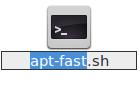
First rename the scrip to just apt-fast.
 
After the following screen, just move your cursor to the end of the line with the "end" key, or three presses of the arrow key. Once your cursor is at the end of the file name, then just simply press the backspace key three times. This will get rid of the .sh file extension. After you have done this press the "enter" key to finish renaming the file. By the way this is the same way you rename files in Windows.

Step 2)Change the permission of the file to allow for the execution of the code.

This involves a few simple clicks. First you will need to right click the menu, and select properties, at the bottom of the context menu.

PRO USER TIP: context menu
                          keyboard- shortcut.

"shift" + "F10"

*This will only help if the file is selected(highlighted)*

Then the following menu will appear.


Now you will need to click on the "Permissions" tab. The "permissions" tab is located in between the selected "Basic" tab & the "Open with" tabs.


Now all you need to do is to click the check box "Allow executing file as program", and click close the window.


To open up Nautilus with root privileges, you will first need to open the run dialogue, and then type in the following command:

"alt" + "F2"
gksu nautilus
Make sure to substitute <your_user_name> with the user account you are logged in under. If not you will not find the folder when you open Nautilus with root permission. 

This will open up a nautilus file manager with root power.

Enter your password, and select "OK".


Next you will need to navigate to your users Downloads folder.

From this screen there are two ways to navigate to the "/" of the file system. You could either use the keyboard shortcut "alt" +   <up arrow>, or you could click on the little Less than sign, and the small hard drive that appears.
select the highlighted home folder.
 You will find a folder within this "home" folder, that is named <your_user_name>; that contains your "Downloads" folder.

I have two user folders within my "home" folder, because I have separate user accounts for me and my roommate. 
PRO USER TIP: In order to use the split view for easy drag/drop of your files within nautilus you can use the "F3" key to toggle split pane view, or navigate the view drop-down menu and select "extra pane". When you are in split pane view the window that has a white background, is the one that is active.

Now you will need to double-click the "Downloads" folder. 

Now that you are within the "Downloads" folder as root, you will need to right-click & select the copy option. 

 
Now you will need to navigate to the / of the file-system, before navigating to the /usr/sbin folder. You can do this by selecting the small Hard drive icon, just to the Left of the home button. From here you will need to double-click on the "usr", and "sbin" folders in turn; until you end up at the following location.

Click through the highlighted /usr folder, and also double click the /usr/sbin folder within the /usr folder. Make sure not to put it in the /sbin directory on the base of the file-system.
congratulations you finally found the /usr/sbin folder.
Now you will need to right click anywhere that is not a file, until you find the following menu; and select "paste".
 
Now your apt-fast script is installed, and here is how you use it. When you would normally use a command like apt-get update, now you will use apt-fast update. It is that simple. 

Let's open a terminal to check it out:

"Ctrl." + "alt" + "t" :opens a terminal window, without having to search for your distribution's terminal program within a burred menu.
PRO_User_TIP: Notice how I added the apt-fast upgrade, and the apt-fast upgrade commands together with the double ampersand symbols; so that I don't have to wait for one command to complete before starting another.
Enter your password when prompted, and don't panic if you don't see anything when you type your password; just do it and press "Enter".

notice the three connection's, all collecting bits of the file; all at the same time.
type "y", and "enter" when prompted by the [y/n] prompts. All activity will stop until you choose "y" or "n".
Done already? verify that all packages are installed properly. If errors are found, run apt-get clean as root and try again using apt-get directly.

Google+